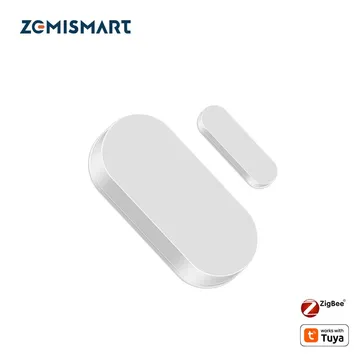
Zemismart Door/Window Sensor
A Zigbee contact sensor that reports open or closed state and battery level. Works with Home Assistant (ZHA), Zigbee2MQTT, deCONZ and Hubitat.
Works with


Features
Features by hub: support differs between Apple Home, Home Assistant and others.
About
A Zigbee contact sensor for doors and windows that reports open or closed state and battery level.
Pairing
About 2 minutes. Put the device into pairing mode first, then add it to your hub.
- Press and hold the reset switch on the pin hole on the side of the device for +- 5 seconds (until the red light starts blinking). After this the device will automatically join.
- In Hubitat, open Devices and choose Add device.
- Pick Zigbee, then Start Zigbee pairing.
- Name the device and choose a room once it is found.
- Press and hold the reset switch on the pin hole on the side of the device for +- 5 seconds (until the red light starts blinking). After this the device will automatically join.
- Go to Settings → Devices & services and open the ZHA integration.
- Choose Add device to start the scan.
- Pick the device when it appears, then assign it to an area.
- Press and hold the reset switch on the pin hole on the side of the device for +- 5 seconds (until the red light starts blinking). After this the device will automatically join.
- Open the Zigbee2MQTT frontend and turn on Permit join for the coordinator.
- Wait for the device to appear in the Devices list.
- Rename it and assign it to a room.
- Press and hold the reset switch on the pin hole on the side of the device for +- 5 seconds (until the red light starts blinking). After this the device will automatically join.
- Open Phoscon and go to Devices, then choose the kind of device.
- Start the search and keep the device close to the ConBee or RaspBee.
- Give the device a name when it appears.